Your PC Is Slow, Infected, or Full of Junk. Tron Script Is Worth Trying First.
Tron script automates Windows cleanup, disinfection, repair, and optimization in one run. Here is how to use it safely and when to reach out if it does not solve your problem.
Your PC is running slow. Or it is infected with something your antivirus did not catch. Or it is just full of junk accumulated over months or years — toolbars, trial software, temp files, startup bloat.
You could clean it by hand. It would take hours and you would probably miss something.
Or you could let Tron script do it for you.
Tron is an automated batch script that runs a structured cleanup sequence: Prep → Tempclean → De-bloat → Disinfect → Repair → Patch → Optimize → Wrap-up. It is not magic. It is a well-organized to-do list that executes itself while you do something else.
The logs go to C:\logs\tron\tron.log. If something looks wrong later, you have a record of what happened.
What Tron handles well
Tron works through the usual suspects:
- malware that got past your antivirus
- junk files and temporary data
- common Windows repair steps
- system patches and optimization
It is a strong first pass when your machine is in a bad state and you do not want to manually work through a checklist.
What Tron does not do
Tron is not a hardware test. It will not tell you if your hard drive is failing or your RAM is dying. It will not recover your lost files or fix a corrupted Windows profile.
It also will not help if your real problem is an compromised account, a broken backup system, or something that needs actual diagnosis instead of cleanup.
When the problem is deeper than what a cleanup run can fix, you need someone who can look at the machine properly. That is a different kind of work.
How to run Tron
1. Download from the official source
Get it from bmrf.org/repos/tron — the official download page. Extract it somewhere you will remember, like the desktop.
2. Add Tron to your antivirus exclusion list
Before running Tron, open Windows Security → Virus & threat protection → Manage settings → Exclusions → Add an exclusion. Point it to the Tron folder.
Tron modifies system files, cleans malware, and disables bloatware processes. Defender and most third-party antivirus software will flag it as a threat — it looks like malware behavior because it is doing what malware does, just intentionally. Without the exclusion, your antivirus will stop Tron halfway through.
3. Run it as administrator
Open the Tron folder. Right-click tron.bat and select Run as administrator. When prompted, type I AGREE and press Enter.
4. Leave it alone
Tron will run for several hours. Keep the machine plugged in. Do not interrupt it unless Tron explicitly asks you to do something.
During the middle stages, the screen will look repetitive. That is normal. Stages like de-bloat and disinfect can sit on the same output for a while. Patience here is a virtue.
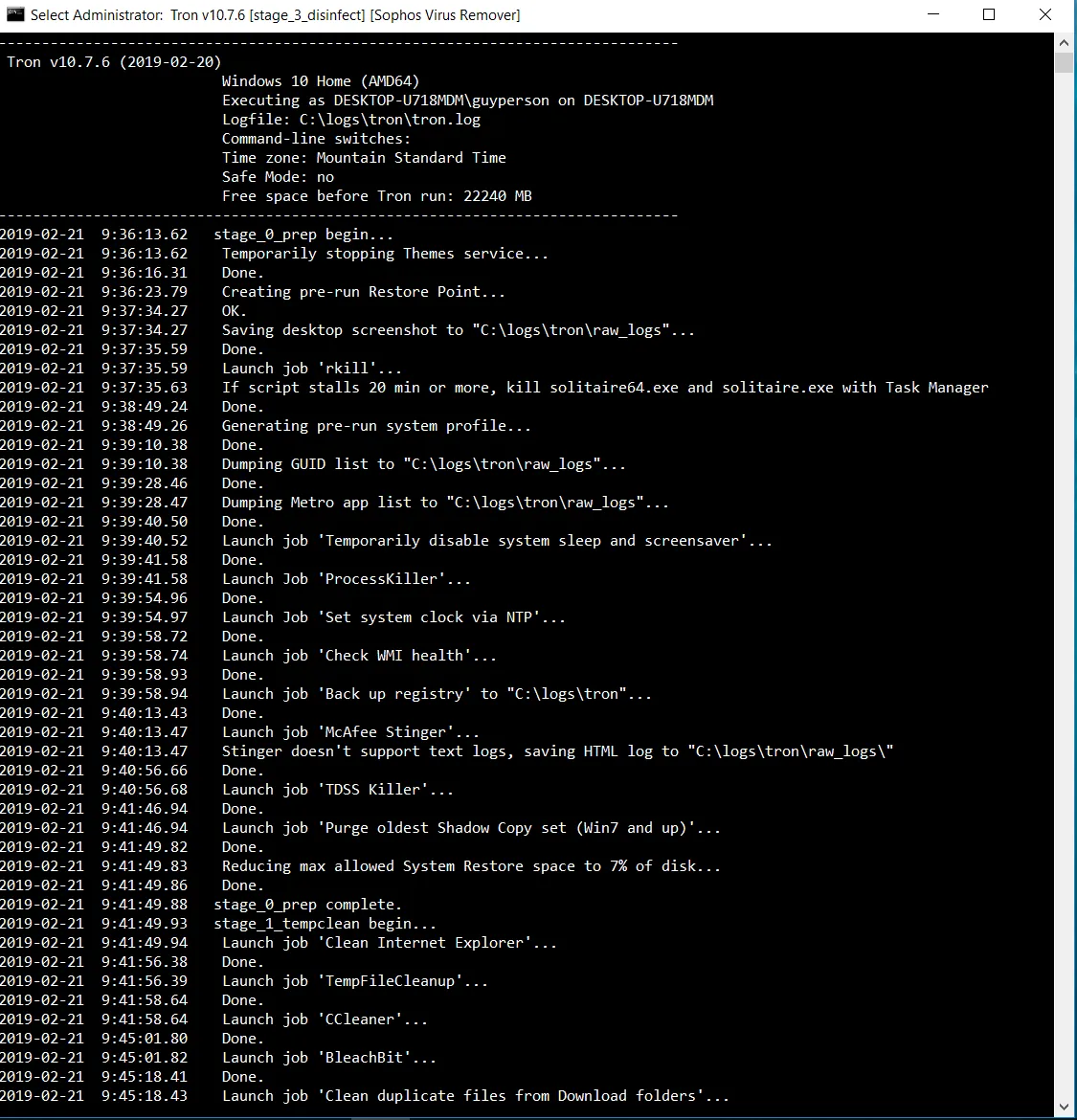
The color codes in the output tell you what is happening:
- 🟢 Green — stage finished cleanly, or the item was already in a good state
- 🟠 Orange — warning, skipped something, needs review but is not a hard failure
- 🔴 Red — failure or blocked action. Look at the log before you trust the result.
5. Check the result
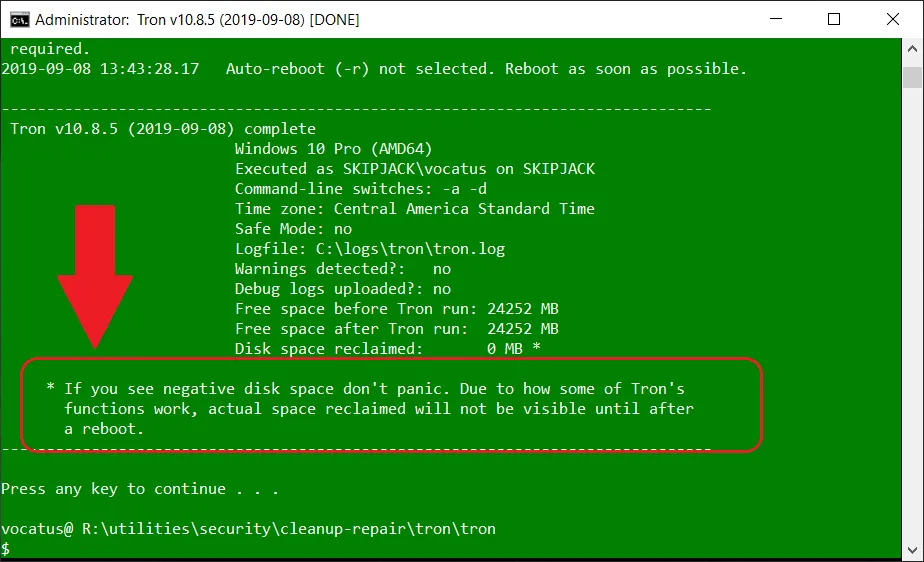
When Tron finishes, read the summary. Open C:\logs\tron\tron.log if anything looks off.
A green result is good. It means Tron completed its run and did not hit blocking errors. It does not mean your machine is perfect — it means Tron got through its checklist. Hardware issues, hidden infections, or deeper problems may still be present.
If Tron is not enough
Tron handles a specific scope: cleanup, disinfection, repair, optimization. It is a solid tool for what it does.
If your machine still has problems after Tron runs, or if you want something that handles this automatically on a schedule without you having to babysit it, contact me. Tell me what happened and what you are trying to accomplish — I will tell you quickly if we are a good fit.